Audio and subtitle transfer
Add or replace audio and subtitles from another supported source containing the same video. Compare both videos side by side and match the same scene to import the tracks with their timing aligned to your video.

Blu-ray editing software for Windows
BDHenja is a Windows app for re-editing finished 2D and 3D Blu-rays. Select a playlist, save it as a BDPKG editing file, then work on that file. Transfer audio and subtitles, adjust subtitle position and parallax, and export to Blu-ray, MP4 or MKV.
The app interface supports 12 languages.
Japanese, English, German, French, Spanish, Italian, Portuguese, Russian, Korean, Simplified Chinese, Polish and Turkish.
Supports compatible 2D and 3D Blu-rays, excluding copy-protected material and UHD Blu-ray.
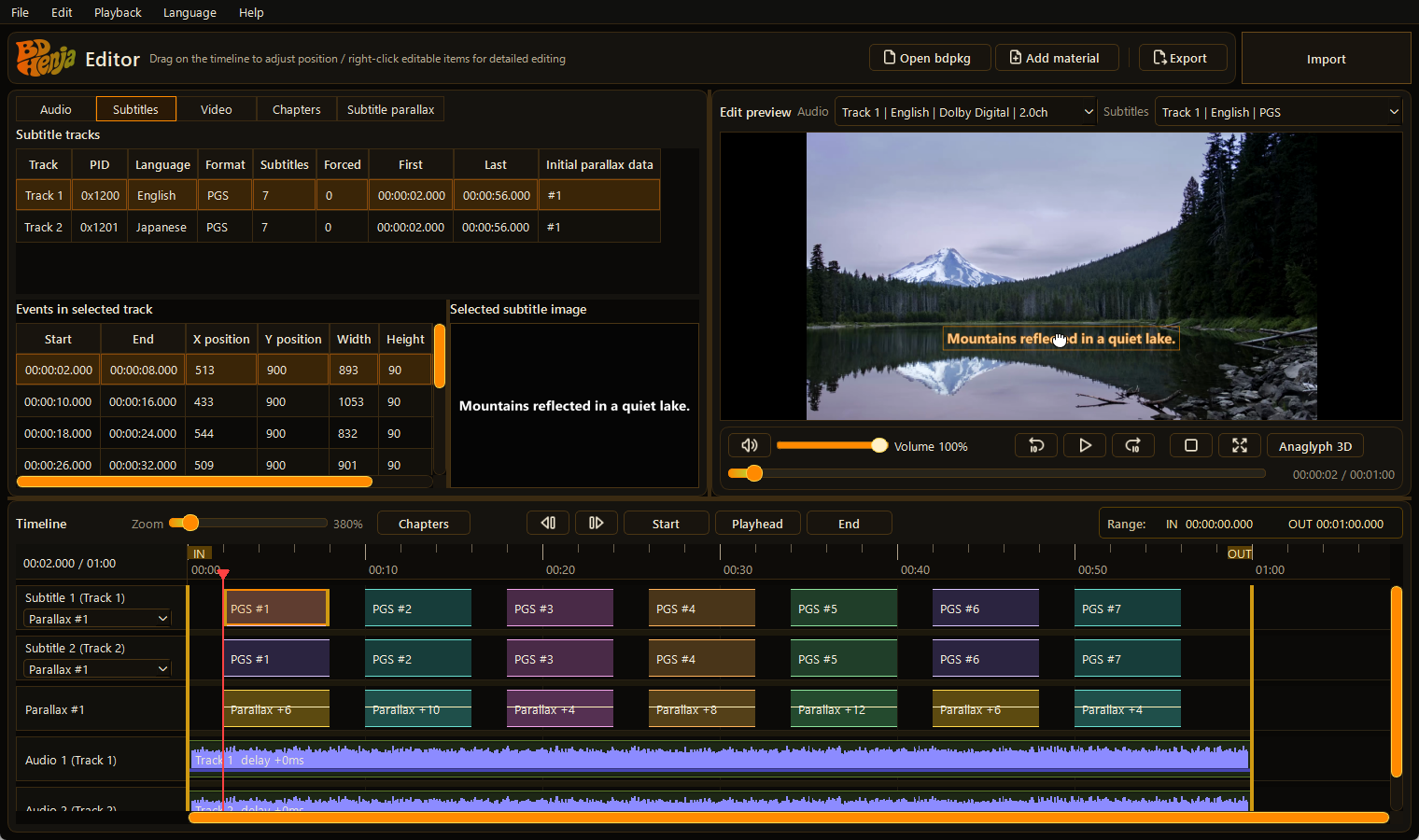
Transfer the tracks you need, align them with the picture, and create a new version.
Add or replace audio and subtitles from another supported source containing the same video. Compare both videos side by side and match the same scene to import the tracks with their timing aligned to your video.
Adjust subtitle position and timing, and subtitle parallax for 3D viewing. Preview how subtitles sit against the video as you refine their placement.
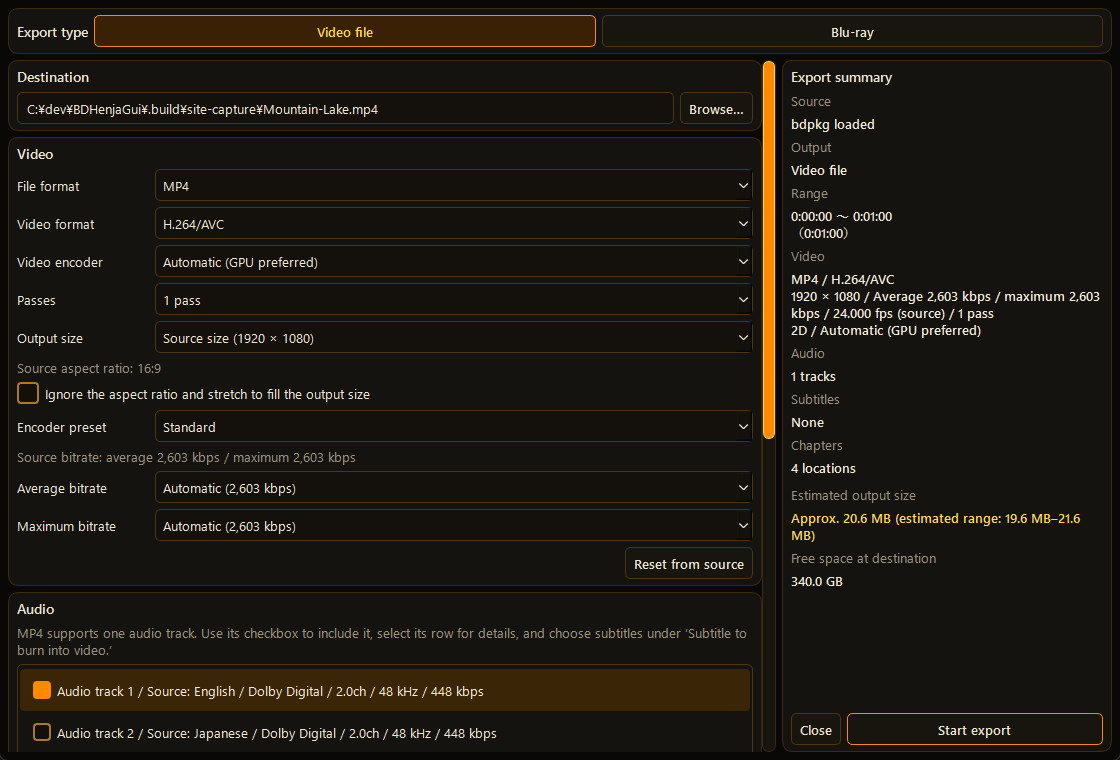
Rebuild a Blu-ray or export to MP4 or MKV. For 3D sources, choose side-by-side, anaglyph or a single-eye 2D view.
Select a file or disc format and a viewing mode to suit your source and playback setup.
| Blu-ray | Save 2D / 3D as an ISO or Blu-ray folder. Blu-ray menu creation is not supported. |
|---|---|
| MP4 | Export with one audio track and optional burned-in subtitles. |
| MKV | Keep multiple audio and subtitle tracks in a video file. |
| 2D | Export the selected eye’s view. |
|---|---|
| Side-by-side | Place the left and right views next to each other. |
| Anaglyph | Combine color-converted views for red/cyan glasses. |
3D requires supported material with both eye views. MKV soft subtitles are not converted to anaglyph; burn them into the video for anaglyph subtitles.
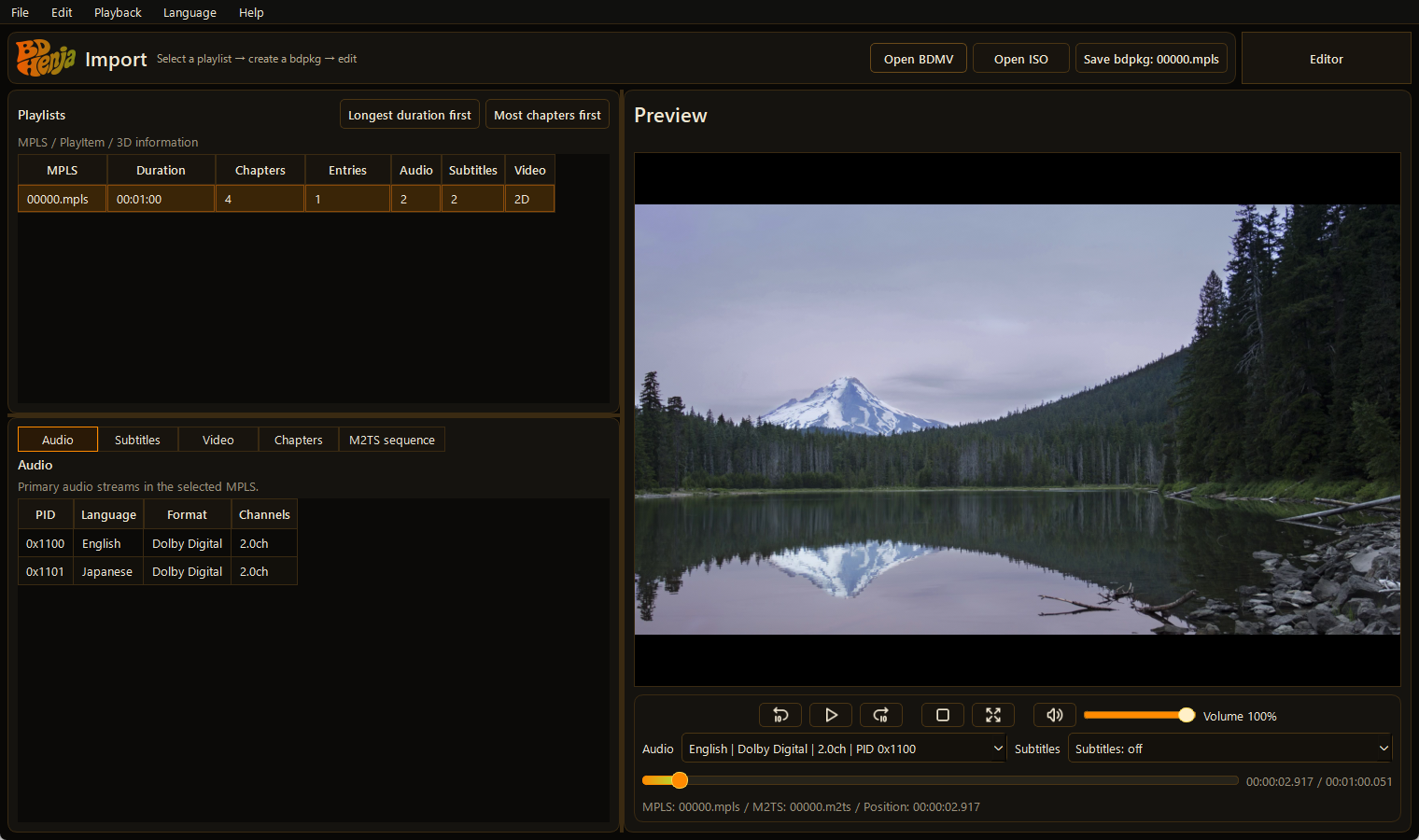
Open a BDMV folder or Blu-ray ISO and choose the playlist you want to edit.
Choose the audio and subtitles to keep and save them with the video as a BDPKG (.bdpkg). This is BDHenja’s editing file, bringing the selected media together in one file.
Open the BDPKG you created to add or replace audio and subtitles, adjust timing and subtitle position, and set subtitle parallax for 3D viewing.
Rebuild a Blu-ray or save an MP4 or MKV file.
Check CPU performance and free storage space as well as GPU availability.
| OS | Windows 10 version 2004 or later / Windows 11 (x64) |
|---|---|
| CPU | An x64-compatible CPU. Re-encoding and 3D conversion times also depend on CPU performance. |
| GPU | Video encoding supports NVIDIA NVENC, Intel QSV and AMD AMF. Availability depends on the GPU, driver and output settings. |
| Without GPU encoding | When a compatible GPU encoder is unavailable, encoding uses the CPU. |
| Free storage | Allow space for BDPKG files, temporary files and exports in addition to the source material. |
Using a GPU does not accelerate every operation. Performance and memory needs vary with the source and edits; use the trial to check your PC with your own material.
Check the Microsoft Store listing for pricing and availability in your region.
The trial exports up to 5 minutes. This time limit is removed after purchase.
This page has no analytics, advertising, cookies or file uploads. Only the display language you select manually is saved in your browser.